How to Use Plant MIDI in Ableton Live
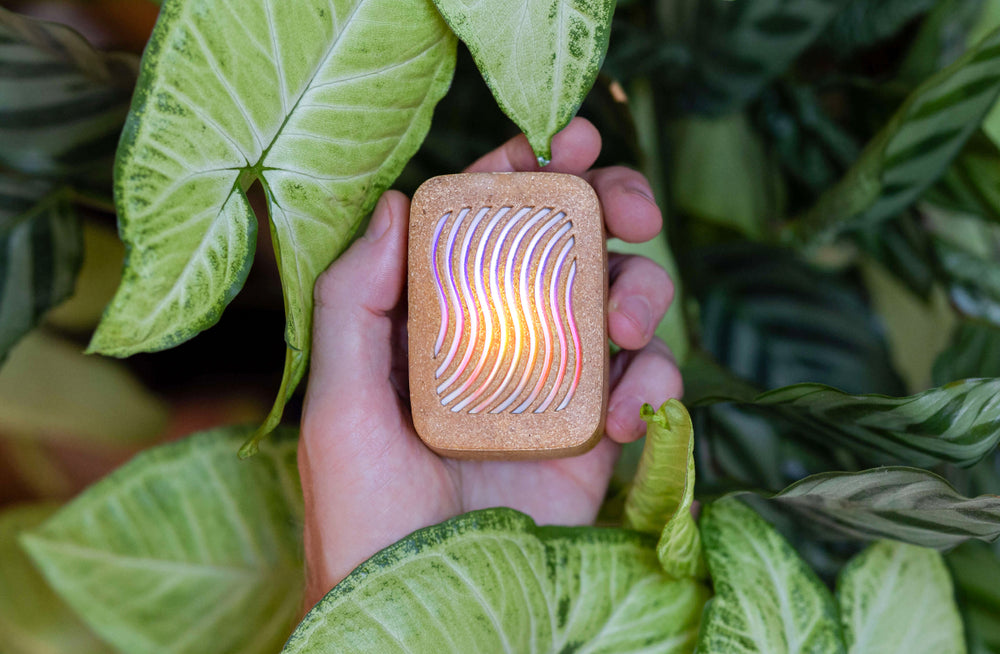
PlantWave generates MIDI notes and CC data from a plant's bioelectrical signal. This guide gets that MIDI into Ableton Live, from first connection to your first creative session.
Three Ways to Connect
Choose the one that fits your setup. All three deliver the same MIDI data to Ableton.
Bluetooth (via MIDI Bridge)
Cable-free. Requires the PlantWave MIDI Bridge (free Mac utility, macOS 13+). The Bridge receives plant MIDI over Bluetooth and routes it to Ableton via Virtual Source or IAC Bus. Best for multi-device setups, gives you per-device MIDI channel and CC assignment.
- Open the MIDI Bridge app, connect your PlantWave(s)
- Assign each device a unique MIDI channel in the Bridge
- In Ableton → Settings → Link/Tempo/MIDI: enable Track and Remote for the PlantWave input
WiFi (Network MIDI)
No Bridge needed. Connect PlantWave to your 2.4GHz WiFi network via the web setup flow at plantwave.local, then create a network MIDI session in macOS Audio MIDI Setup.
- Power on PlantWave, connect to its WiFi with your computer, navigate to 192.168.4.1, enter your 2.4GHz credentials. Note: your computer will briefly go offline during this step while it's connected to PlantWave's network, it returns to your normal WiFi once setup is complete.
- Open Audio MIDI Setup → MIDI Studio → MIDI Network Setup
- Create a session, find PlantWave in the directory, click Connect
- In Ableton: enable Track and Remote for the PlantWave network MIDI input
USB
Simplest option for troubleshooting. MIDI mode must be enabled on the device first (via app, web browser, or MIDI Bridge).
- Make sure PlantWave is ON before plugging in USB (prevents serial mode)
- Connect USB-C to your Mac
- PlantWave appears in Ableton's MIDI input list, enable Track and Remote
Ableton Configuration
Regardless of connection method, in Ableton's Link/Tempo/MIDI settings:
- Track: ON, receives MIDI note and CC messages
- Remote: ON, enables MIDI mapping to Ableton parameters
Keep other unnecessary MIDI ports disabled to avoid feedback loops.
Your First Session
- Create a MIDI track. Set the input to your PlantWave port.
- Add an instrument, something forgiving (a pad, mallet, or soft synth).
- You should see MIDI activity in the track meter as the plant signal arrives.
- Optional: PlantWave has 6 built-in scales (Chromatic, Major, Minor, Indian, Pentatonic Major, Pentatonic Minor). In Ableton, most users run Chromatic on the device and handle all scaling and arpeggiation inside Ableton, the Scale device and arpeggiator give you more control than locking the scale on the hardware.
Mapping CC to Parameters
PlantWave's CC represents plant activity, how variable the plant's signal is in each measurement window. Higher activity produces higher CC; lower activity produces lower CC. It's smoothly ramped (no abrupt jumps) and best mapped to parameters that respond to gradual organic change: filter cutoff, reverb size, LFO rate, chain selectors, macro controls. For the full technical breakdown, including the chain selector technique and what to avoid mapping, see Plant MIDI CC: What It Is and How to Use It.
The CC Mapping Challenge
Ableton's MIDI Map mode detects the last-moved controller. With PlantWave active, both notes and CC stream simultaneously, so Ableton may pick up a note instead of the CC.
Workaround: Isolate CC
- Unplug the electrodes (stops signal, device stays connected)
- In Ableton's MIDI preferences, disable Track for the PlantWave input while keeping Remote enabled, this stops notes from being captured during MIDI Map mode while CC still flows through
- Enter MIDI Map mode
- Plug electrodes back in, Ableton sees CC only, map it
- Exit MIDI Map, re-enable Track, reattach electrodes
Alternatively, use a MIDI knob or controller mapped to CC80 to grab the mapping without needing to touch the plant signal at all. Or start with a pre-configured template that already has CC80 (PlantWave's default) mapped to a macro.
Multi-Device Routing
Using the MIDI Bridge, there's no hard device limit, 4 are confirmed stable in testing, and practical ceiling varies by Mac hardware and Bluetooth environment. Each device supports up to 8-note polyphony, so a 4-device ensemble can produce up to 32 concurrent notes. The key guideline: each device on a unique MIDI channel. It's a guideline, not a hard rule, but channel conflicts will cause interference, choppy CC, irregular notes.
Create a separate MIDI track per device, each filtering for its assigned channel. Each plant drives its own instrument independently.
Three Creative Starting Points
1. Notes for Melody, CC for Texture
Route notes to a pad. Map CC to a macro controlling filter cutoff over a subtle range. Small movements, spacious results.
2. Scale-Constrained Harmony
Scale device → pentatonic. The plant explores within safe harmony. Add an arpeggiator for rhythmic structure the plant can't provide on its own.
3. Multi-Plant Ensemble
Two or more plants, each on a different instrument. One on a pad, one on a mallet, one controlling effects sends via CC. Give each plant its own arpeggiator rate and its own note range, you'll get natural variation across the ensemble without programming anything. The plants are already performing differently from each other; the arp rates and note ranges just let you hear those differences as rhythmic and melodic distinction. No rehearsal needed. For long-running multi-plant sessions, see PlantWave for Installation Artists.
Troubleshooting
- No MIDI input: Confirm Track is ON. Check correct port is selected.
- Notes but no CC: Default CC is 80. Confirm your mapping targets CC80.
- USB not recognized: Device must be ON before USB plug-in. Disconnect and reconnect.
- WiFi won't connect: Must use 2.4GHz network, not 5GHz.
- Mapping captures notes instead of CC: Use the isolation workaround above.
For complete MIDI behavior details, note ranges, CC characteristics, default settings, and edge cases, see the PlantWave MIDI Specification. Want to connect directly to a synth without a computer? See PlantWave as a Plant Synthesizer.
Download the PlantWave MIDI Bridge, cable-free Bluetooth MIDI with per-device routing.