Plant Synthesizer: How to Connect PlantWave Directly to Your Synth
For musicians connecting PlantWave to hardware synthesizers or DAWs via MIDI. If that's you, read on.
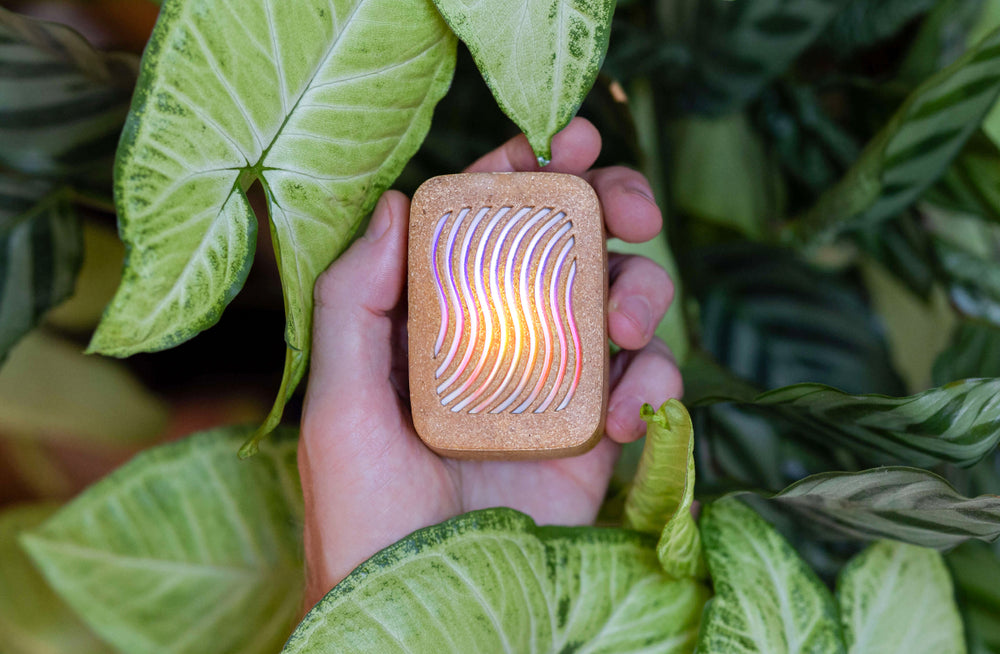
One of the most common misconceptions about PlantWave: "You need a phone to use it." You don't. Once MIDI is enabled on the device, a one-time firmware setup, PlantWave connects directly to synthesizers, MIDI interfaces, and DAWs with no phone, no app, and no computer in the signal path.
The One-Time Setup
PlantWave ships with MIDI output disabled by default. To enable it on the physical ports (3.5mm and USB), you need to change one firmware setting. This can be done via the iOS app, Android app, web browser, or the MIDI Bridge app on Mac.
After that, the phone goes away. PlantWave operates as a standalone MIDI controller, power it on, connect electrodes to a plant, and plug into your synth.
Connecting to Synthesizers
3.5mm Type A (Most Common)
PlantWave has a 3.5mm Type A MIDI output. Connect it to any synth with a 3.5mm Type A MIDI input using a standard stereo aux cable. This is the simplest path: one cable, no computer, no software.
WARNING: The 3.5mm port is MIDI output, not a headphone jack. Do not plug in headphones or speakers, this can damage audio equipment.
5-Pin MIDI (Older Synths)
For synthesizers with traditional 5-pin DIN MIDI inputs, use a 3.5mm Type A to 5-pin MIDI adapter. PlantWave → adapter → synth. Still no computer required.
USB-C MIDI
PlantWave's USB-C port outputs MIDI when MIDI mode is enabled. Connect directly to any device that accepts USB MIDI. Make sure PlantWave is powered on before connecting USB, otherwise it enters serial mode instead of MIDI mode.
Type B Synths
PlantWave outputs Type A MIDI. Synths with Type B 3.5mm MIDI inputs are not directly compatible with a simple cable. For Type B synths, route through a DAW or use a Type A → Type B adapter. Check minimidi.world for your synth's type.
Firmware Settings That Matter
Once MIDI is enabled, you can configure these settings (via app, web browser, or MIDI Bridge):
- MIDI Channel, default: Channel 1. Change if your synth listens on a specific channel or if you're routing multiple devices.
- CC Number, default: CC80. Controls which CC number carries the plant activity data. Match this to the parameter you want to modulate on your synth.
- Root Note, default varies by unit (C per firmware; some units ship as A). Set explicitly before use. Match your synth's tuning or the key of your session.
- Scale, default varies by unit (Major / Chromatic). Set explicitly before use. Six scales available: Chromatic, Major, Indian, Minor, Pentatonic Major, Pentatonic Minor. Pentatonic is recommended for synth use, any note combination sounds harmonious regardless of what the plant generates.
- Polyphony, default: 5, maximum: 8. How many simultaneous notes the device sends. Adjust based on your synth's polyphony capabilities.
What to Expect from the Signal
PlantWave generates MIDI notes from changes in the plant's electrical conductivity, and CC representing plant activity, how variable the signal is in each measurement window. On a synth, this means:
- Notes arrive organically, pitch and timing reflect the plant's natural variability. Up to 8 simultaneous notes (configurable 1–8, default 5)
- CC reflects activity level, higher values = more active plant, lower values = calmer. Smoothly ramped, no abrupt jumps. Useful for filter sweeps, envelope depth, or any parameter that benefits from slow, living modulation
- Signal character varies by plant species, pothos tends to be active and wide-ranging; snake plants produce a steadier, narrower band
Recommended CC targets for synths: Filter cutoff, attack/decay, LFO rate, effects send. Avoid: Volume (level jumps), resonance at high values (painful), pitch (dissonant unless intentional). For the complete CC behavior breakdown, see Plant MIDI CC: What It Is and How to Use It. For all configurable parameters and defaults, see the PlantWave MIDI Specification.
See It in Action
What You Need
- PlantWave device ($299), get PlantWave
- A synthesizer with MIDI input (3.5mm Type A, 5-pin, or USB)
- For 5-pin synths: a Type A MIDI adapter
- A plant and electrode pads or clips
- A phone or computer only once to enable MIDI mode in firmware
After the one-time setup, PlantWave is a standalone instrument. No phone in the room. No app running. Just a plant, a device, and your synth. Want to use PlantWave in a DAW instead? See How to Make Plant Music with Ableton Live. Curious about PlantWave's lineage from MIDI Sprout? See MIDI Sprout vs PlantWave: The Full Evolution.